
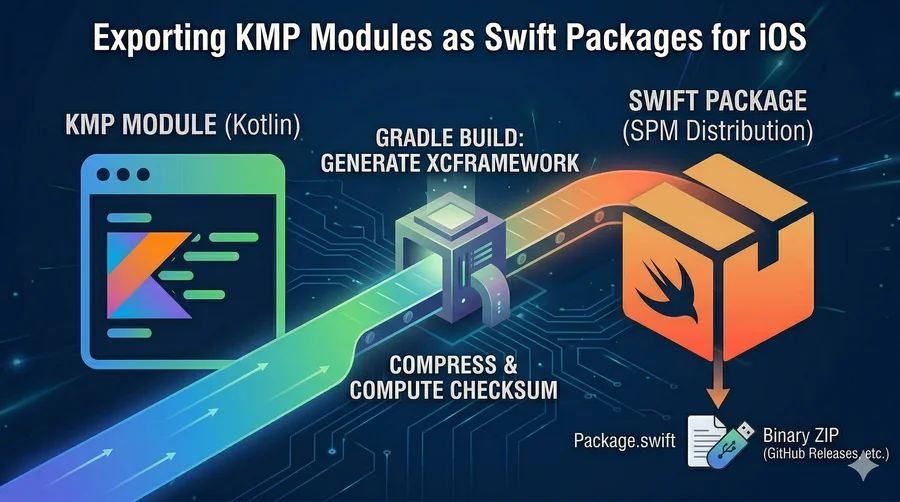
Exporting KMP Modules as Swift Packages for iOS
This post is based on the official Kotlin documentation: Swift Package Export Setup
Full credit to the JetBrains and Kotlin team. I recommend reading the original docs alongside this post.
🧠 Introduction: Reducing iOS Adoption Friction
One of the recurring challenges with Kotlin Multiplatform is the integration story on the iOS side. iOS developers live in Xcode, they think in Swift, and they want to add dependencies the same way they always have — through Swift Package Manager.
If your KMP module can’t be consumed as a Swift package, iOS developers have to adopt a new workflow just to use your shared code. That friction is real and it slows adoption. The good news is that KMP has first-class support for distributing as an XCFramework wrapped in a Swift package, and the setup is more straightforward than it might seem.
In my experience, the investment in this setup pays off quickly: once your KMP module is a proper Swift package, the iOS team can consume it exactly like any other dependency — no special Gradle knowledge required.
📦 What You Need to Distribute
A Swift package backed by a binary XCFramework requires two artifacts:
- An XCFramework ZIP — the compiled binary for all Apple targets, compressed and uploaded to accessible file storage (GitHub Releases, S3, Maven, etc.)
- A
Package.swiftmanifest — the file that tells SwiftPM where to find the binary and how to expose it
Choosing Your Repository Structure
There are three options for where to put your Package.swift, and the choice matters more than it might seem:
- Separate Git repositories (recommended) —
Package.swiftlives in its own repo, Kotlin code in another. This allows independent versioning: you can tag a new Swift package release without touching the Kotlin repo’s commit history. Best for libraries intended for external consumption. - Same repository as Kotlin code — simpler to maintain, but SwiftPM Git tags will conflict with your project’s version tags. Workable for internal projects where you control both sides.
- Inside the consumer project — avoids versioning entirely, but creates problems if multiple packages depend on your module and breaks CI automation for synchronized updates. Avoid unless the project is very small.
🔧 Configuring the Gradle Build
In your shared/build.gradle.kts, configure the XCFramework:
import org.jetbrains.kotlin.gradle.plugin.mpp.apple.XCFramework

kotlin {
    val xcframeworkName = "Shared"
    val xcf = XCFramework(xcframeworkName)

    listOf(
        iosX64(),
        iosArm64(),
        iosSimulatorArm64(),
    ).forEach {
        it.binaries.framework {
            baseName = xcframeworkName
            binaryOption("bundleId", "org.example.${xcframeworkName}")
            xcf.add(this)
            isStatic = true
        }
    }
}
A few things worth noting:
binaryOption("bundleId", ...)— sets the CFBundleIdentifier, which must be unique. Without this, Xcode may reject the framework.isStatic = true— use static linkage unless you have a specific reason not to. Dynamic frameworks cause symbol conflicts when multiple frameworks bundle the same Swift packages.- The three targets (
iosX64,iosArm64,iosSimulatorArm64) cover simulators and physical devices.
Then run the assembly task:
./gradlew :shared:assembleSharedXCFramework
The output lands at shared/build/XCFrameworks/release/Shared.xcframework.
For Compose Multiplatform projects the module is typically composeApp:
./gradlew :composeApp:assembleSharedXCFramework
📤 Packaging and Distribution
Step 1: Compress and Checksum
# Zip the XCFramework
zip -r Shared.xcframework.zip Shared.xcframework

# Calculate the checksum (required for Package.swift)
swift package compute-checksum Shared.xcframework.zip
Step 2: Upload to GitHub Releases
- Go to your repository → Releases → Create a new release
- Create a semantic version tag (e.g.,
1.0.0) - Attach the ZIP in the Attach binaries field
- Publish the release
- Right-click the ZIP under Assets → Copy link address
Verify the link is publicly accessible before continuing:
curl -I <your-download-link>
# Should return HTTP 200 or a redirect to the asset
Step 3: Create Package.swift
// swift-tools-version:5.3
import PackageDescription

let package = Package(
    name: "Shared",
    platforms: [
        .iOS(.v14),
    ],
    products: [
        .library(name: "Shared", targets: ["Shared"])
    ],
    targets: [
        .binaryTarget(
            name: "Shared",
            url: "<link to the uploaded XCFramework ZIP file>",
            checksum: "<checksum calculated for the ZIP file>"
        )
    ]
)
Step 4: Validate and Publish
# Validate the manifest
swift package reset && swift package show-dependencies --format json

# Push Package.swift to your dedicated repository
git add Package.swift
git commit -m "Release 1.0.0"
git tag 1.0.0
git push origin main --tags
🏗️ Exporting Multiple Modules
If your project has separate network and database modules that you want to expose as a single Swift package, you can create an umbrella module.
Configure the umbrella together/build.gradle.kts
kotlin {
    val frameworkName = "together"
    val xcf = XCFramework(frameworkName)

    listOf(
        iosX64(),
        iosArm64(),
        iosSimulatorArm64()
    ).forEach { iosTarget ->
        iosTarget.binaries.framework {
            export(projects.network)
            export(projects.database)
            baseName = frameworkName
            xcf.add(this)
        }
    }

    sourceSets {
        commonMain.dependencies {
            api(projects.network)
            api(projects.database)
        }
    }
}
- Use
api()— notimplementation()— for dependencies you want to export.implementationkeeps them internal. - Use
export()inside the framework block to make the module’s public API visible from Swift.
Each included module must declare iOS targets
// network/build.gradle.kts
kotlin {
    android { }
    iosX64()
    iosArm64()
    iosSimulatorArm64()
}
Workaround: create an empty Kotlin file
Gradle requires at least one source file to assemble the framework. Create:
together/src/commonMain/kotlin/Together.kt
Leave it empty or add a comment — its contents don’t matter.
Then assemble:
./gradlew :together:assembleTogetherReleaseXCFramework
Swift consumers can then import both modules with a single import together.
✅ Verifying the Integration
In Xcode, go to File | Add Package Dependencies, paste the URL of your Package.swift repository, and add the package.
Test the import with a minimal SwiftUI view:
import SwiftUI
import Shared

struct ContentView: View {
    var body: some View {
        VStack {
            Text("Platform: \(Shared.Platform_iosKt.getPlatform().name)")
        }
        .padding()
    }
}
If the preview compiles and shows the platform name, the integration is working correctly.
💡 Key Takeaways
- A KMP module distributed as a Swift package requires two artifacts: an XCFramework ZIP and a
Package.swiftmanifest. - Use separate Git repositories for the
Package.swiftand Kotlin code when distributing externally — independent versioning is worth the extra setup. - Always set a unique
bundleIdviabinaryOptionand preferisStatic = trueto avoid symbol conflicts. - For multi-module exports, use
api()+export()in an umbrella module and create an empty source file as a workaround for Gradle’s build requirement. - Once published, the iOS team integrates your KMP code exactly like any other Swift package — zero Gradle knowledge required on their side.
📚 Further Reading
- Swift Package Export Setup — Official Kotlin documentation
- Importing Swift Packages into KMP — Use iOS SDKs directly from shared Kotlin code
- Migrating KMP from CocoaPods to SPM — Step-by-step migration guide